This section details the procedures of enabling the scale-out feature on a GS appliance.
Note:
The GS appliance that you use to enable scale-out will become the primary appliance.
Enable Scale-out on a Used Appliance
If you have enabled the scale-out feature in the Initial Setup Wizard during storage initialization, please skip to Create Users and Create and Access Folders from a Client.
If you did not enable the scale-out feature during storage initialization, follow the instructions below to do so.
Update the firmware
Check the firmware, and update it to a version that supports the scale-out service if needed (firmware version 1.61K.10/L.10 or later).
According to enhancements implemented in later firmware versions, the installation guide will keep update the contents.
Enable scale-out on a used appliance
Once you have updated the firmware, follow these steps to set a used GS appliance as the primary appliance.
- On a web browser, log in to EonOne using the GS appliance’s management IP.
- Make sure you have created a volume on this appliance. You can create a volume at Settings > Storage > Volumes.
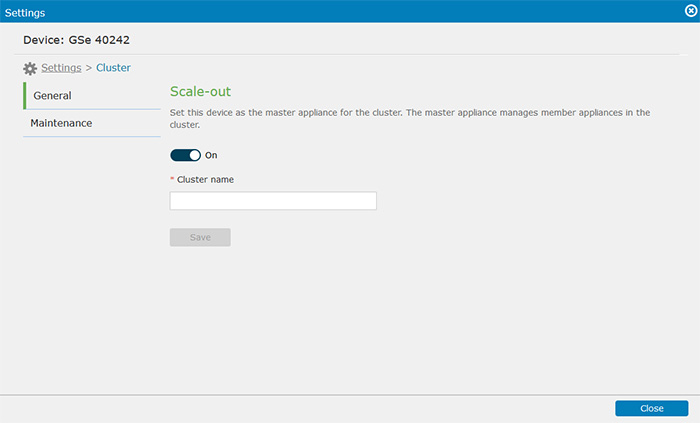
- Go to Settings > Cluster > General.
- Enable the scale-out feature (“On”).
- Specify the cluster name.
- Click Save. The scale-out feature will be enabled, and the GS appliance will be set as the primary appliance.
- Refer to Create Users, Create Folders from a Client, and subsequent sections to start using the scale-out feature.
Enable Scale-out on a New Appliance
If you are using a new GS appliance, follow the steps below to enable the scale-out feature and set up the appliance as the primary appliance.
Note:
A “new” appliance is one that has NOT been initialized. If you have completed initial settings with the Initial Setup Wizard on an appliance, it will be considered a used one.
- Refer to Start Using the Storage > Storage Initialization and follow the Initial Setup Wizard’s guide to initialize the GS appliance. Make sure to enable the scale-out feature on the System settings page.
- When the initialization is complete, log in to EonOne using the GS appliance’s management IP.
Enable a File Cluster
After enabling scale-out, you can also enable file cluster to manage your data on file-level.
- Go to Settings > Cluster > File cluster. Enable the file cluster feature (“On”).
- Specify the following information:
- Root shared folder: Specify the name of the root shared folder. In the future, you will use a client computer to manage and access data via the root shared folder.
- Cluster root volume: Select a volume as the cluster root volume, which has to be a volume on the primary controller (controller A by default).
- For a dual-controller model, if you plan to use both controllers in your cluster later, make sure to create at least a pool and a volume on each controller.
- Make sure to allocate sufficient capacity on the cluster root volume. By default, folders created under the root shared folder will be located on the cluster root volume first.
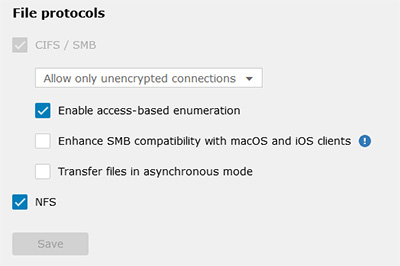
- File protocols: If needed, change the settings to suit your needs.
Important!
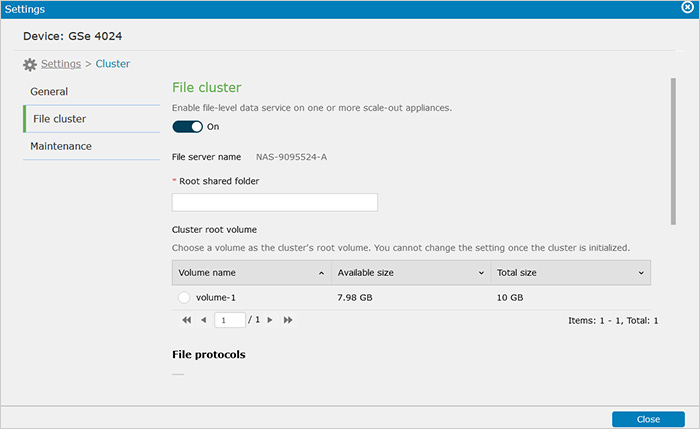
- Click Save. The file cluster will be enabled. Refer to Create Users, Create Folders from a Client, and subsequent sections to start using the scale-out feature.
 Home