Create your folders in the disk pool to store files, and share them with other users for easy file exchange.
- Open File Manager in either way:
- Dashboard: File Manager icon in the bottom left corner.
- Go to Menu > Setting > File Manager and click Launch
- Click on the New folder icon to create a new folder.
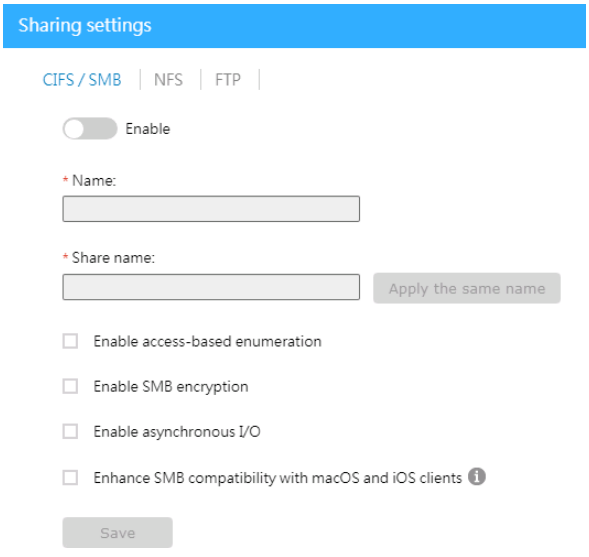
- Select a folder to share. Right-click on it and then click on Share to configure the share settings.
- Choose one or more file-sharing protocols for sharing. Then, specify the name, share name, and advanced settings for this folder. Click Save to save the settings.
 Home