Symptom:
A problematic drive is not functioning well and requires replacement.
Solution:
Follow the instructions below to perform the copy and replace function:
- Access the Settings:
Go to Settings > Storage > Disk. Select the drive you want to replace and click the Copy & Replace button.
- Select Source and Target Drives:
- Source Drive: Select the drive to be the source drive (e.g., Slot 8). The source drive must be a member of a logical drive.
- Target Drive: Select the drive to be the target drive (e.g., Slot 11). The target drive must not be a member of a logical drive nor a spare drive.
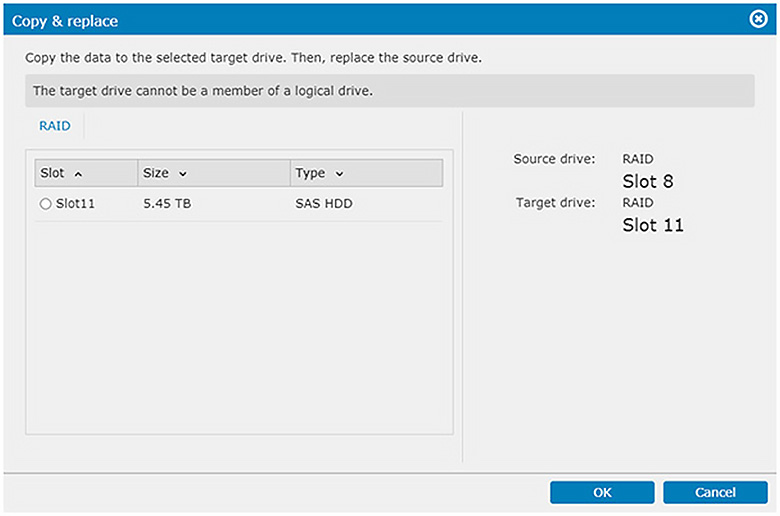
- Start the Process:
Click OK. The content of the source drive will be copied to the target drive, and the target drive will take the place of the source drive. Note that the copying process will not be visible in the spare target drive status column.
Notes:
- The source drive must be a member of a logical drive.
- The target drive must not be a member of a logical drive nor a spare drive.
- The capacity of the target drive must be larger than that of the source drive.