Prerequisites
- The source drive must be a member of a logical drive.
- The target drive must meet the following conditions:
- It must be a spare drive, and it must be available during the cloning process.
- The capacity of the target drive must be larger than the source drive.
- The system will automatically select the spare drive as the target drive when cloning begins.
Configuration Steps
- Navigate to the Clone Option:
Go to Settings > Storage > Drive, select the source drive, and click the Clone button.
- Select the Source Drive:
- Choose the drive to be cloned (e.g., Slot 11 in this example).
- Ensure the selected drive is a member of a logical drive.
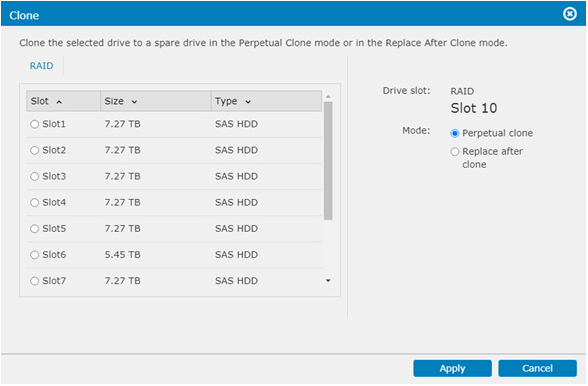
- Choose the Cloning Mode:
Select one of the following cloning options:- Perpetual Clone:
- The source drive's data is copied to the target drive.
- The source drive remains a member of the logical drive.
- If the source drive fails, the target drive automatically takes over its role.
- Replace After Clone:
- The source drive's data is copied to the target drive.
- The target drive takes over the role of the source drive in the logical drive.
- The source drive is disassociated from the logical drive and becomes a "used drive."
- Perpetual Clone:
- Start the Cloning Process:
- Click Apply to initiate cloning.
- The spare drive will automatically be chosen as the target drive.
- Monitor or Abort the Process:
- To view the progress or stop the cloning process, select the spare drive.
- The cloning progress is displayed in the Spare Drive Status column.
Note:
- Ensure the target drive meets the capacity requirement before starting the cloning process.
- If the cloning process is aborted, the target drive will remain a spare drive.