Symptoms
You may encounter an error message after importing an SSL certificate via the GS UI.
Conditions When the Problem Occurs
The SSL certificate is successfully imported in the GS UI, but an error message is displayed.
Possible Causes
- Error “NET::ERR_CERT_INVALID”
This error occurs when the domain parameter in the SSL certificate does not match the current domain you’re using for the web address.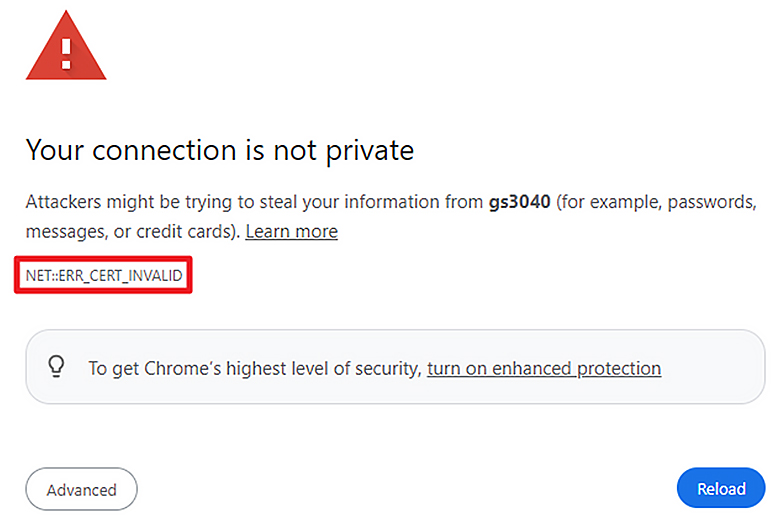
- Error “NET::ERR_CERT_AUTHORITY_INVALID”
This error occurs because the Windows system or the web browser does not recognize the SSL certificate, identifying it as a private certificate rather than a public one.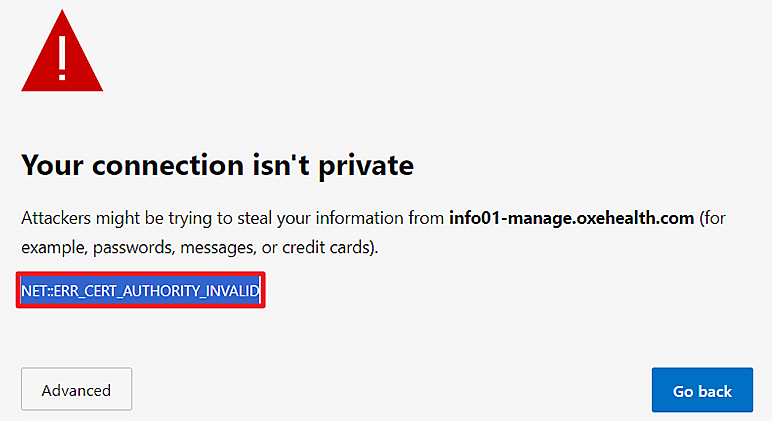
Solutions
- Error: “NET::ERR_CERT_INVALID”
- Click on “Advanced.”
- On the page that appears after clicking “Advanced” (showing options like “Hide advanced” and “Reload”), type “thisisunsafe” anywhere on the window. This will bypass the error and allow you to visit the page. The bypass adds a temporary exception for that particular domain in Chrome's internal storage.
- Create a new SSL certificate, ensuring that the domain parameter matches the correct domain during creation.
- Import the newly created certificate.
Note:
If the issue persists after these steps, please create a support ticket and provide the diagnostic logs and a screenshot of the error message.
- Click on “Advanced.”
- Error: “NET::ERR_CERT_AUTHORITY_INVALID”
- Click on “Advanced” below the error message “NET::ERR_CERT_AUTHORITY_INVALID.” and check the options.
- If a “Continue” button is available, use it to access the GS UI.