Symptom:
MFA verification fails, and an error message or prompt indicates verification cannot be completed successfully. Please refer to the image below for the error message.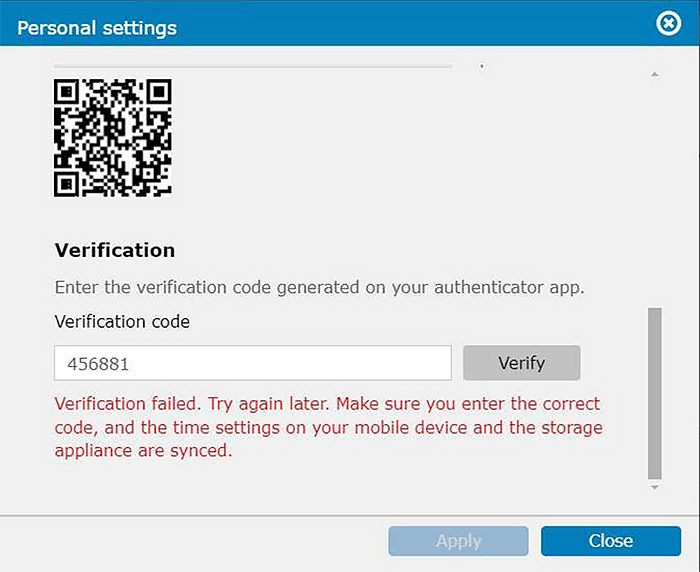
Diagnosis:
The issue may stem from a time synchronization problem between the host device (where MFA is being set up) and the mobile device used for verification.
Solution:
To resolve this issue, follow these steps:
- Adjust Time Settings:
- Navigate to your device's settings: Settings -> Time -> Change date and time.
- Enable the option to Automatically sync with NTP server.
- Select the appropriate NTP (Network Time Protocol) server from the available options.
- Click on the Update now button to synchronize the time immediately.
- Verify Mobile Device Time:
Ensure that the time on your portable/mobile device (used for MFA verification) is accurate and synchronized with the same NTP server if possible. - Time Setting Path:
Settings -> Time -> Change date and time -> Automatically sync with NTP server -> Select corresponding NTP server -> Update now
Please refer to the provided image for visual guidance on navigating these settings and making the necessary adjustments.
By ensuring that both the host device and the mobile device have accurate and synchronized times, you can resolve the issue with MFA verification. This synchronization is crucial for the proper functioning of MFA processes, ensuring secure and reliable authentication.