Symptom
One of the controllers suddenly failed.
Diagnosis
Controllers might encounter firmware (FW) or hardware (HW) issues. Validation by Infortrend Technical Support is required to determine the exact cause.
Procedure
- Check the 7-segment LED of the Failed Controller:
- Observe the 7-segment LED indicator on the failed controller.
- If possible, make a short video of the LED indication for reference.
- Restart the Failed Controller via WebGUI:
- For DS Model: Navigate to System Setting > System > Restart Failed Controller.

- For GS Model:
- Navigate to Setting > System > More.
- Select Run Both Controllers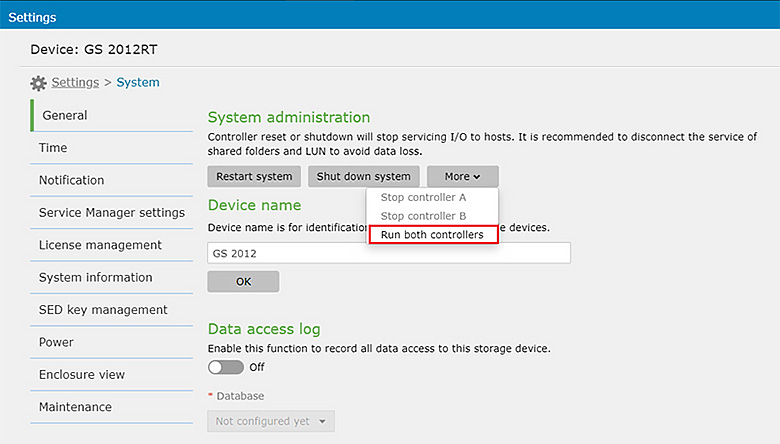
- For DS Model: Navigate to System Setting > System > Restart Failed Controller.
- Physically Remove and Reinstall the Controller:
- Remove the controller from the system until all LEDs are off.
- Reinstall the controller after ensuring it is fully powered down. - Export Diagnostic Logs:
- Wait until the previously failed controller boots up.
- Export the full diagnostic log and coredump files for Technical Support.
Solution
The issue could be a known problem that has been resolved in the latest firmware. Check the Release Notes for more detailed information. Updating the firmware is another way to address the issue. You can download the latest firmware from the following link: Infortrend Service.
If the problem persists, follow the next instructions from the TSD Support Engineer.
By following these steps, you can diagnose and address the issue with the controller shutdown, ensuring minimal downtime and optimal performance of your system.