Symptoms
If you encounter slow file transfer in SMB connection but the local file transfer speed via AFP is normal, this may be due to the signing-on feature. When SMB is enabled (which is by default), you may encounter slow SMB performance.
Analysis of the Problem
What are the effects of enabling SMB signing? After you enable SMB signing, the network performance of SMB Direct together with the network adapter is significantly reduced.
Solution
To fix SMB file transfer issues, follow these steps:
- Connect Your Mac to Your GS System Using SMB:
Ensure that your Mac is connected to the GS system via SMB. - Launch Terminal on Your Mac:
Open the Terminal application on your problematic Mac system.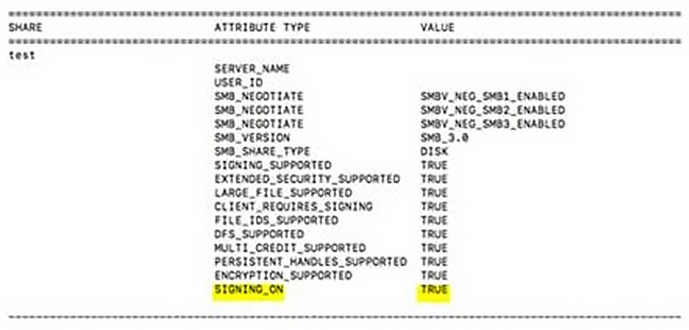
- Check SMB Signing Status:
- Enter the command
smbutil statshares -ato display the attributes screen. - If
SIGNING_ONis shown asTRUE, proceed to the next step to disable this feature.
- Enter the command
- Disable SMB Signing:
Enter the commandprintf "[default]\nsigning_required=no\n" | sudo tee /etc/nsmb.conf > /dev/nullto turn offSIGNING_ON. - Confirm SMB Signing Status:
Enter the commandsmbutil statshares -ato confirm ifSIGNING_ONis no longer displayed. This means that the signing feature has been turned off.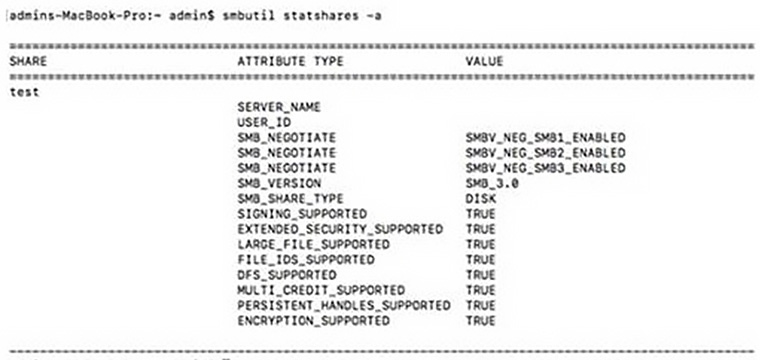
- Reconnect to the NAS Server:
Unmount the NAS server and reconnect it via Mac's Finder. - Validate SMB File Transfer Performance:
Check if the SMB file transfer performance has improved.