Häufig gestellte Fragen (FAQ)
How do I activate, reactivate, or download a license on my GS?
This article describes the procedure of license-related operations for GS/GSe/GSe Pro/GSi/GSc/GSa family products, including the following services:
- Advanced License Activation (for features excluding NVR)
- License Reactivation
- NVR License Activation
- Trial License Download
Note:
If you have encountered one of the following situations, you must reactivate your license:
- You have replaced a backplane with a new one.
- You have purchased a new device with special offers about software licenses.
- You have purchased a license during Infortrend’s special marketing campaigns.
Procedure
Step I. Generate a License Application File in EonOne
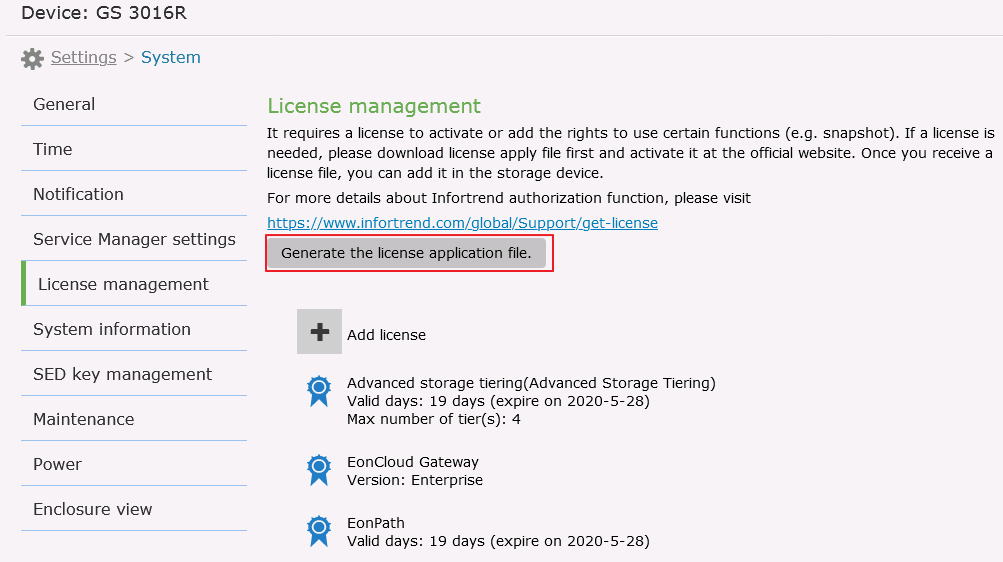
- In the management interface EonOne, go to Settings > System > License management.
- Click Generate the license application file. Download will start immediately and the file will be saved on your computer.
Step II. Download the License Key File from the Website
- On Infortrend’s official website, go to Support > Product Services > Licensing Services.
- Find GS in the left menu and select the service you need:
- Advanced License Activation
- License Reactivation
- NVR License Activation
- Trial License Download
- Log in to your account. Create an account first if you don’t have one.
- Follow the step-by-step instructions to upload the License Application File and provide required information.
- Download the License Key File and save it on your computer.
Step III. Upload the License Key File to EonOne
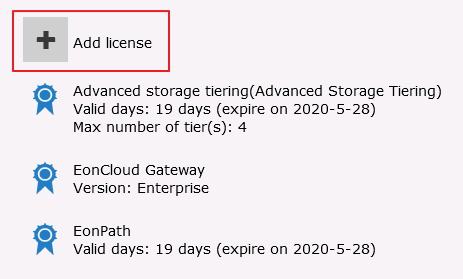
- Return to EonOne and go to Settings > System > License management.
- Click Add license to upload the License Key File.
- Restart the system for the license to take effect after it has been installed.
Created Date: 09/17/2020