Symptom
After creating a VM in a Hyper-V cluster, you may encounter numerous iSCSIPrt errors with various Event IDs. These errors can disrupt the operation of your VMs and the overall stability of your Hyper-V environment.
Examples of iSCSIPrt Errors
- Event 9: Target did not respond in time for a SCSI request. The CDB is given in the dump data.
- Event 63: Cannot reset the Target or LUN. Will attempt session recovery.
- Event 34: A connection to the target was lost, but the initiator successfully reconnected to the target. Dump data contains the target name.
- Event 49: Target failed to respond in time to a Task Management request.
- Event 39: Initiator sent a task management command to reset the target. The target name is given in the dump data.
Conditions When the Problem Occurs
This behavior is often related to a setting in Hyper-V's hardware parameters for a Virtual Machine called "Virtual Machine Queue" (VMQ). VMQ is a feature designed to improve network performance by offloading the processing of network traffic from the host's CPU to the network adapter.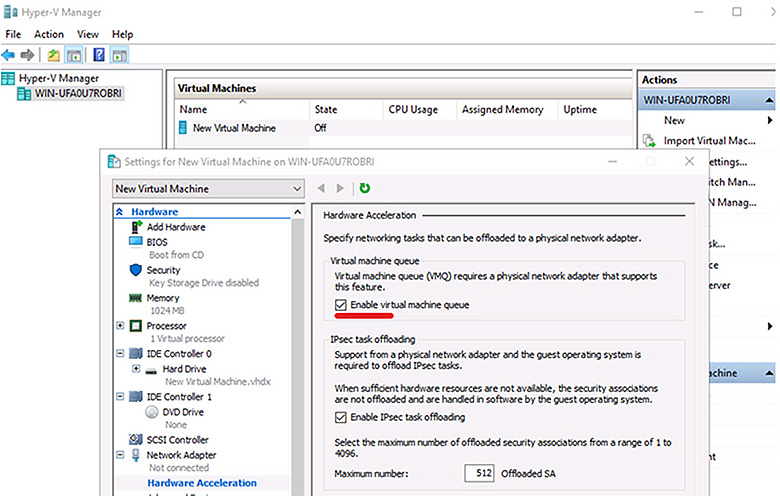
Solution
To resolve this issue, follow these steps to disable the "Virtual Machine Queue" setting in the VM’s settings:
- Open Hyper-V Manager:
Start Hyper-V Manager on your host machine. - Access VM Settings:
- Select the virtual machine experiencing the issue.
- Right-click on the VM and choose Settings.
- Navigate to Network Adapter Settings:
- In the settings window, expand the Network Adapter section.
- Select Hardware Acceleration.
- Disable Virtual Machine Queue (VMQ):
Uncheck the box labeled Enable virtual machine queue. - Apply and Restart:
- Click Apply to save the changes.
- Restart the virtual machine for the changes to take effect.
By disabling the VMQ setting, you should see a reduction in the frequency of iSCSIPrt errors. However, keep in mind that while this may resolve the error messages, it could potentially impact network performance. It's essential to monitor the VM and overall network performance after making this change.
Additional Considerations
- Update Network Adapter Drivers: Ensure you have the latest drivers for your network adapters, as outdated drivers can cause compatibility issues with VMQ.
- Verify Network Configuration: Check your network configuration to ensure there are no issues with your network infrastructure that could cause delays in communication with the iSCSI target.
- Review iSCSI Target and Initiator Settings: Verify the settings on your iSCSI target and initiator to ensure they are configured correctly and that there are no issues with connectivity or performance.
By addressing these settings and configurations, you should be able to mitigate the iSCSIPrt errors and maintain a stable Hyper-V cluster environment.