What should I do if a front panel LED remains amber for more than three minutes after turning on the system (CS/GS/GSx)?
Refer to the table below to troubleshoot the problem. If the problem still exists, contact Technical Support.
If any hardware component needs replacement, you can create a ticket to start an RMA process.
For CS 2060D/3060D/4060D, the two controllers/nodes each have its own front panel LEDs, allowing you to identify which controller encounters a problem.
For GS 2012RD, the LED panel is located at the rear of the system.
| Type |
Abnormal LED status |
Description |
Action |
| 1 |
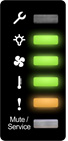 |
- A controller cannot be detected.
- Memory is not installed.
- Wrong BIOS self-test
|
- Power off the system and remove the controller.
- Make sure that all the DIMMS are properly installed. Then install the controller back.
- For a dual-controller model, repeat the above for the other controller.
- Power up the system.
- If unresolved, contact technical support.
|
| A power cable is disconnected, a drive/PSU failure occurred, etc. |
- Check the event log in EonOne, verify the cause, and take corresponding actions.
- If unresolved, contact technical support.
|
| 2 |
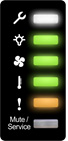 |
The system memory is not enough. |
- Power off the system and remove the controller.
- Make sure that the memory size is equal to or larger than the default memory size per controller (see the Note below). Also make sure that all the DIMMs are properly installed. Then install the controller back.
- For a dual-controller model, repeat the above for the other controller.
- Power up the system.
- If unresolved, contact technical support.
|
| 3 |
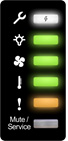 |
System boot failed (Service LED flashing in white). |
- Identify the faulty controller(s).
- Replace the faulty controller(s).
- If unresolved, contact technical support.
|
| 4 |
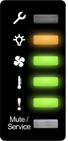 |
One of the PSUs is faulty. |
- Check the PSU LEDs on the rear panel to find the faulty PSU.
- Remove and reinstall the PSU properly.
- If unresolved, replace the PSU.
- If still unresolved, contact technical support.
|
| 5 |
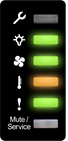 |
The system temperature is too high. |
- Make sure that the rear openings are NOT covered.
- Make sure that the environmental temperature is within the normal range (see the Note below).
- If unresolved, contact technical support.
|
| 6 |
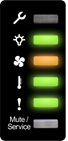 |
- A cooling fan built with the PSU is faulty.
- A cooling fan inside the enclosure is faulty (4U 40-bay / 60-bay models).
|
- Check the cooling fans on the rear panel. Replace the PSU that has the faulty cooling fan.
- For 4U 40-bay / 60-bay models, open the top cover to check the cooling fans inside the enclosure. Replace the entire cooling module if any of the fans is faulty.
- If unresolved, contact technical support.
|
| 7 |
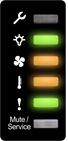 |
A cooling fan is faulty and the system temperature is too high. |
- Make sure that the rear openings are NOT covered.
- Make sure that the environmental temperature is within the normal range (see the Note below).
- Check the cooling fans on the rear panel. Replace the PSU that has the faulty cooling fan.
- For 4U 40-bay / 60-bay models, open the top cover to check the cooling fans inside the enclosure. Replace the entire cooling module if any of the fans is faulty.
- If unresolved, contact technical support.
|
Note:
- For the default memory size per controller, go to Infortrend’s website, click Quick Product Selection (in the top right corner), select your model series, and click Related Information > Host Board and Memory Guide.
- For the normal temperature range of your model, go to Infortrend’s website, click Quick Product Selection (in the top right corner), select your model series, and find temperature information under Environmental on the series page.
- To remove, check, reinstall, or replace a component, refer to the Hardware Manual of your model. On Infortrend’s website, go to Support > Technical Support, select your product, click Downloads, and select your model to download its Hardware Manual. Then find the relevant instructions in Chapter 4 System Maintenance.
Created Date: 06/10/2021