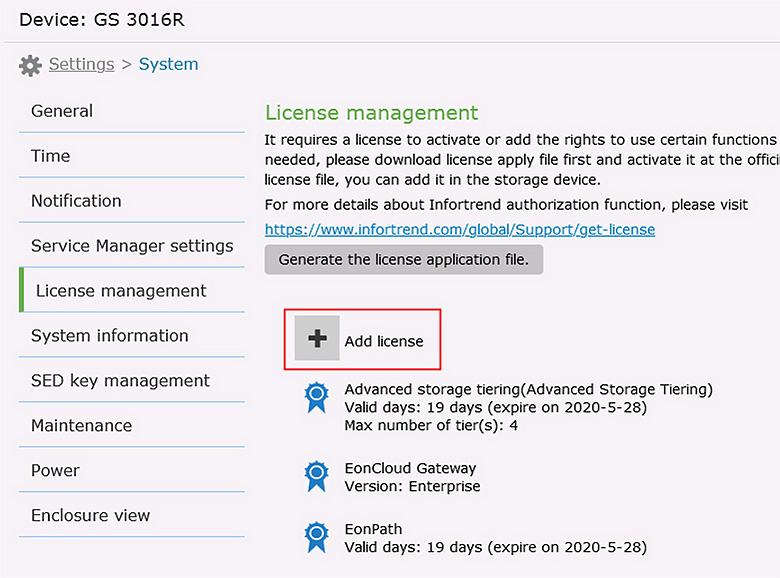
Explanation:
Follow these steps to activate a license for your GS series:
- Access License Service:
- Visit the Infortrend official website > Support. Scroll down and click on License Service.
- Log in to the support site. If you don’t have an account, create a new one.

- Navigate to License Activation:
On the left menu bar, select License Activation - Generate License Application File:
Open the management software EonOne > Settings > System > License Management, and click Generate License Application File.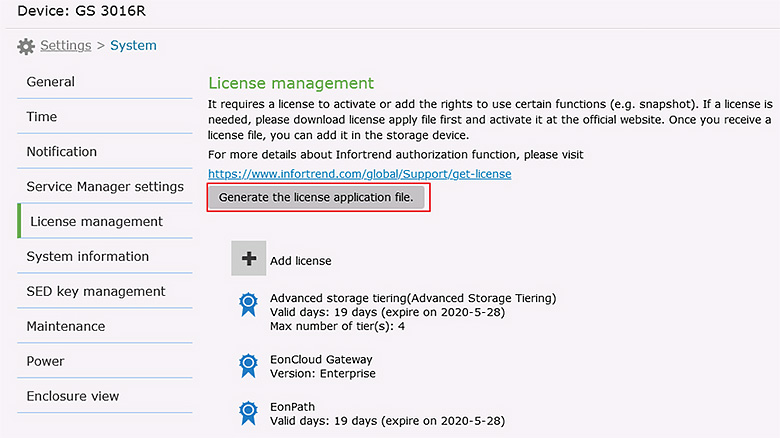
- Upload the License Application File:
Select the generated License Application File, upload it on the support site, and click Next.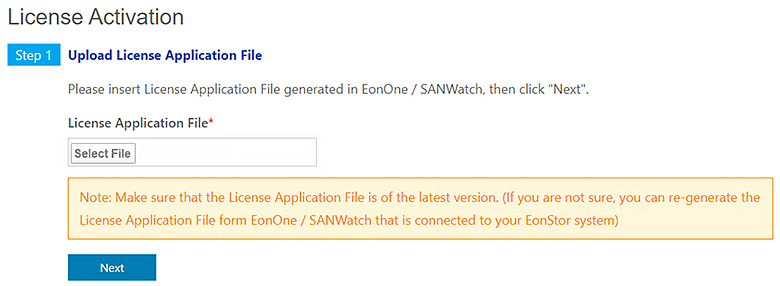
- Enter License Serial Number:
Enter the License Serial Number you received from Infortrend. Click Add to move the license into the “License to be added” section. After verifying the license details, click Next.
- Download License Key File:
Click Download to download the license key file.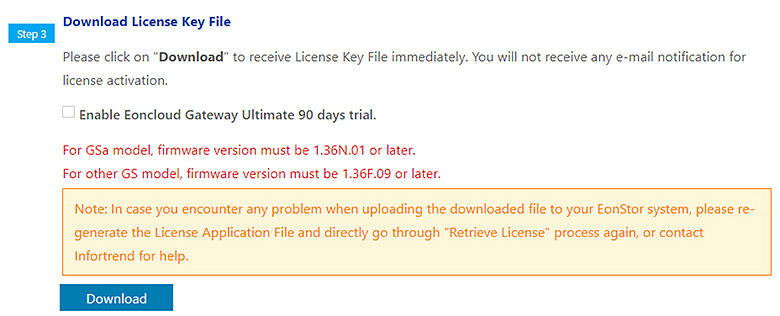
- Activate License in EonOne:
Go to EonOne > Settings > System > Add License, upload the license key file, and the license will be activated.