How do I activate, reactivate, or download a license on my GSx?
This article describes the procedure of license-related operations for GSx family products, including the following service(s):
SSD Cache
Step I. Generate a License Application File in EonOne
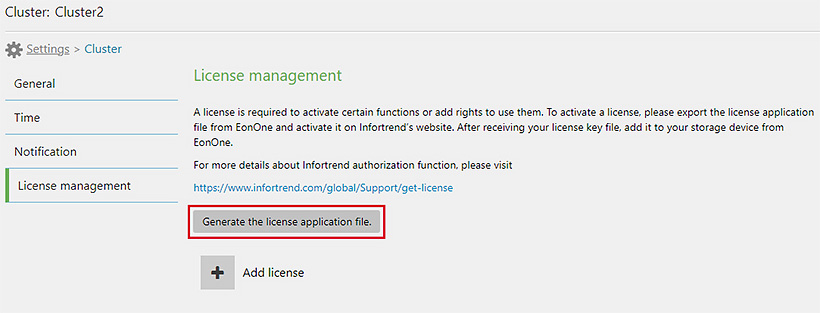
- In the management interface EonOne, go to Settings > Cluster > License management.
- Click Generate the license application file. Download will start immediately and the file will be saved on your computer.
Step II. Download the License Key File from the Website
- On Infortrend’s official website, go to Support > Product Services > Licensing Services.
- Find GSx in the left menu and select the service you need:
- Advanced License Activation
- License Reactivation
- Trial License Download
- Log in to your account. Create an account first if you don’t have one.
- Follow the step-by-step instructions to upload the License Application File and provide required information.
- Download the License Key File and save it on your computer.
Step III. Upload the License Key File to EonOne
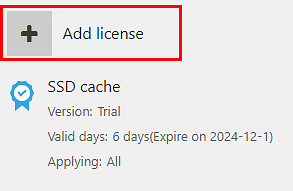
- Return to EonOne and go to Settings > Cluster > License management.
- Click Add license to upload the License Key File.
- Restart the system for the license to take effect after it has been installed.
Created Date: 11/29/2024